
Multi-factor authentication (MFA) is a security process that requires users to provide two or more verification methods to access an account or system.
It is a security layer that prevents unauthorised access, to protect your personal data as well as sensitive features such as the Renters Checklist and Mortgage in Principle.
Follow the steps below to find out how to set up your MFA:
Setting up your MFA
1. Log in to your My Rightmove account by selecting the “Sign in” tab. This is located on the top right hand corner of any Rightmove page.
2. Once logged in, select the 'My Rightmove' account, and then the 'account settings' tab.
3. Click the 'Account Security' tab.
4. The 2-step verification dashboard will then appear to set up your MFA. Select the 'set up' button to start the process.
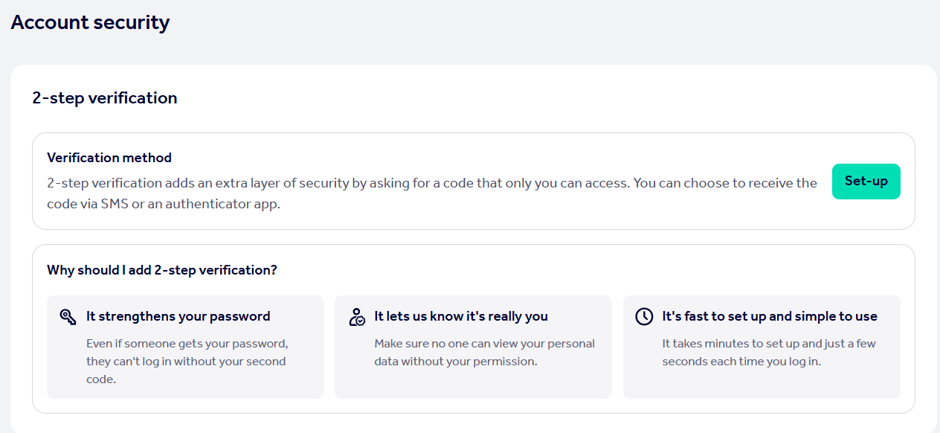
5. You'll then need to choose your verification method. You can choose to verify your My Rightmove account via a text message (SMS) or an Authenticator App.
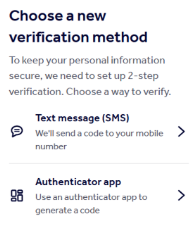
a. If you would like to choose the text message verification method, read the steps below:
-If your mobile number isn't already linked to your My Rightmove account, you'll need to input your mobile number and then a code will be sent to you, If your mobile is already linked to your account, a code will automatically be sent to your number.
It is important to note, you can only use a mobile number that receives text messaged (no landlines), you must include your country code (e.g.+44 for the UK), and the number must belong to you or someone you trust.
-Once you've received your code, type this into the code box and press 'verify' and 'continue'.
b. If you would like to choose the Authenticator App verification method, follow the steps below:
- A message will pop asking if you have an authenticator app installed. To continue this step, you'll need to select 'Yes, I have one installed'. (If you don't have one and select 'No, I don't have one', it will prompt you to download an app).
- You'll then need to add Rightmove to you Authenticator App. You can either do this by scanning the QR code or copy the key into your authenticator app,
-Enter the six digit code that you've got from your Authentication App, and press 'verify' and 'continue'.
6. Your Multi-factor authentication has now been successfully set up.
Recovery Email
After setting up your 2-step authentication, it may prompt you to enter a recover email if this hasn't been set up before on your My Rightmove Account. This is so if you lose access to your verification method, we'll use your recovery email to verify the account.
To do this, enter the email into both boxes and select 'submit'.
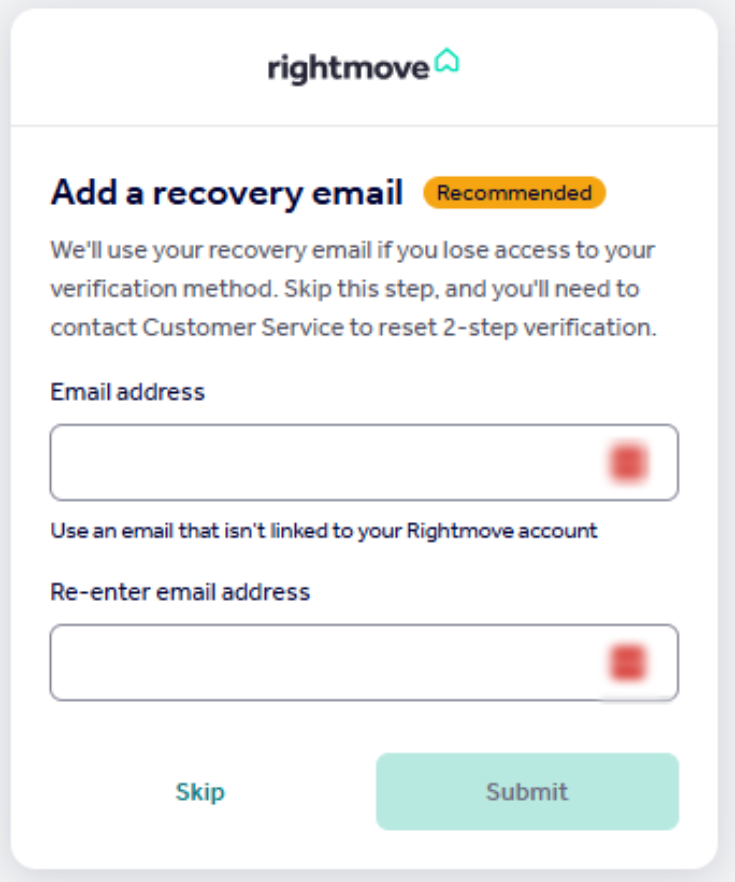
The email you enter must be different to the email you're already using for your My Rightmove account.
Verification Codes/Reporting an Error
Be advised that verification codes expire after 10 minutes.
Too many attempts to retrieve a code in a short period may the lock the account. To unlock your My Rightmove account, find our process via our FAQ page here.
If you don't receive your verification code to your mobile number, check spam/junk in your SMS inbox first.
If there isn't a code from Rightmove in your spam/junk SMS inbox, or the code you've entered doesn't work, you can report this to our Customer Technical Care Specialist team via the following email: customersupport@rightmove.co.uk