
'My Places' is a tool available on Desktop and Mobile which helps you understand potential travel time between the properties you view on Rightmove and the places that matter to you most. As of September 2026, it has started to roll out onto both iOS and Android Apps.
It's available on searches for residential sales properties, lettings properties, new homes and student properties (not commercial or overseas properties).
How does it work? Adding a Place
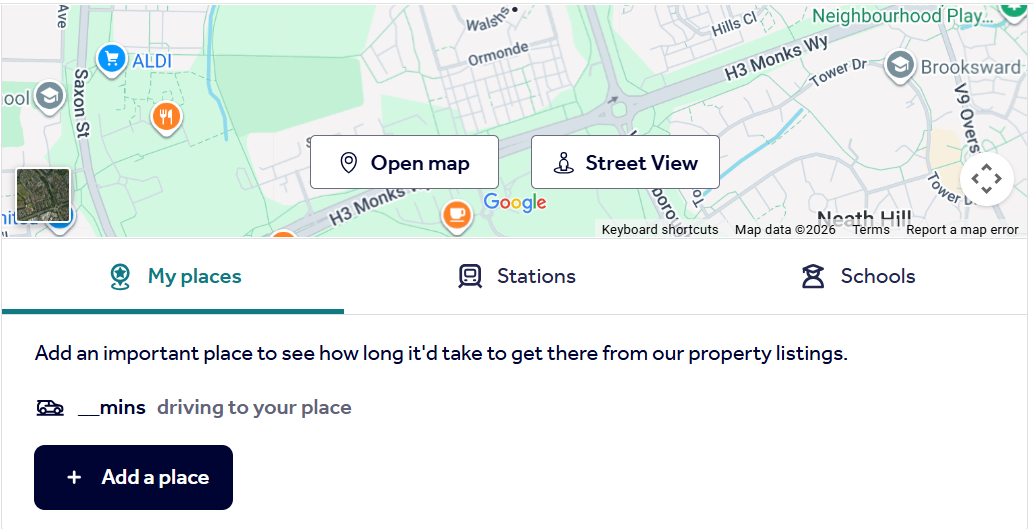
1. When viewing the details of a property, scroll down to the map section
2. Underneath, you'll see a tab for 'My Places'
3. Click the '+Add a place' button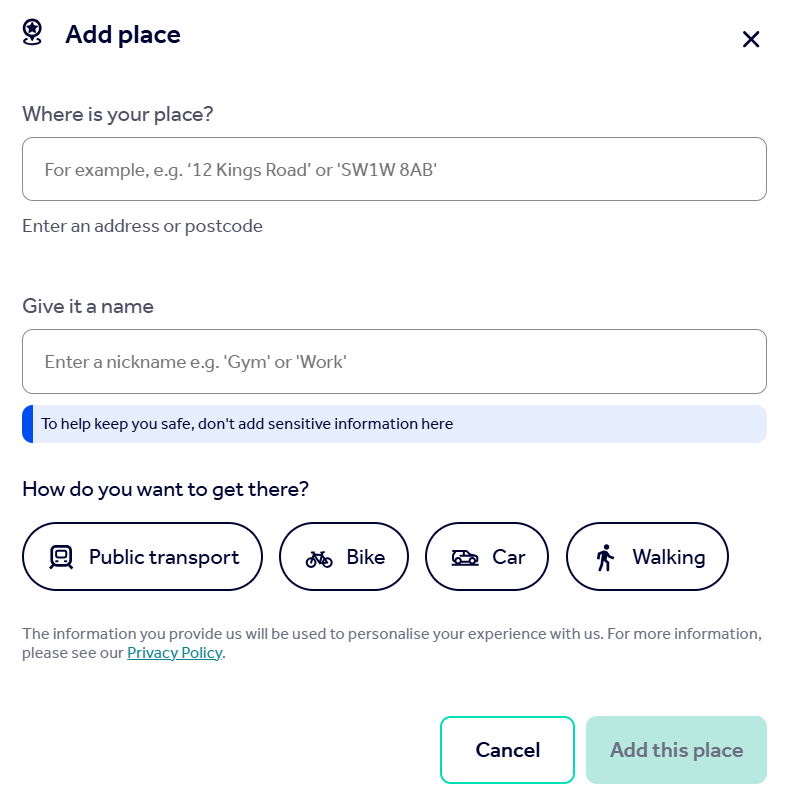
4. Enter your chosen address, mode of transport (from four options: public transport, bike, car or walking)
5. Click 'Add this place'
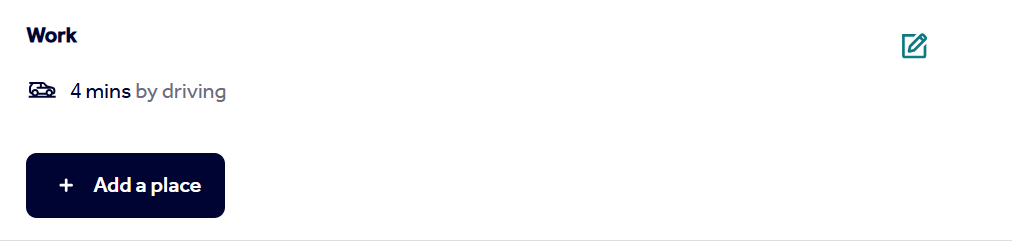
6. You'll see the distance under the map view, and will continue to see this for other property details you view, so long as you're signed into the same My Rightmove account
How does it work? Editing or deleting a place
You can edit or delete your places either on the details page for a property, using the pencil icon to the right of the place, or in your 'My Rightmove' account in the 'Account Settings' section. You can also add new places from the 'My Places' section of your My Rightmove account within your account settings as well.